
Updates and pending actions
Find new bookings and changes, approve requests, and clear what's waiting for you in the Activity tab.
The Activity tab is your to-do list and your news feed in one place. The red number on the Activity tab is how many things need you.
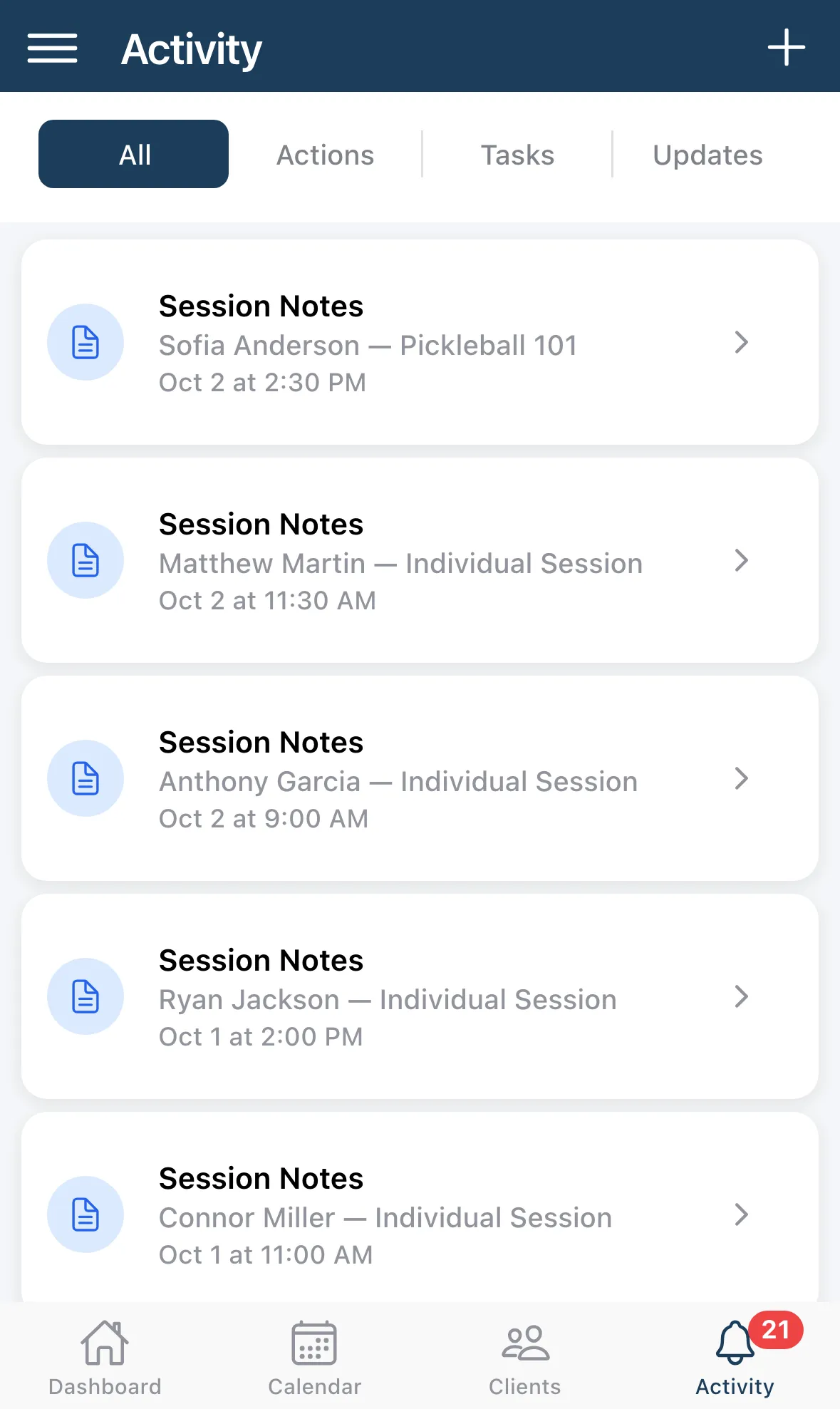
The filters
Section titled “The filters”Along the top, choose what to show:
- All: everything, newest first.
- Actions: things you need to do.
- Tasks: your own to-dos.
- Updates: news about your bookings.
When there’s nothing left it says You’re all caught up.
Actions
Section titled “Actions”An action is something waiting for you. These count toward the red number:
- Booking Request: a client booked and you’ve asked to approve bookings. Tap Approve or Decline right on the card. Declining asks for an optional reason. Tap the card to see the full appointment first. See Calendar Preferences to turn approval on.
- Session Notes: a lesson ended and has no note. Tap it to add one.
- Payment Due: if you track payments in the app, a finished lesson still unpaid. Tap it, check the amount and tap Confirm.
On the Actions filter, Clear All Actions clears the notes and payment reminders. Booking requests stay until you answer them.
Tasks are reminders you write yourself.
- Tap the + at the top right.
- Type what you need to do under What do you need to do?, and set a Due Date if you want.
- Tap Save.
Tap a task to edit, complete or delete it. Swipe a task left to delete it. A task past its due date turns into an overdue task. Overdue tasks count toward the red number on the tab.
Updates
Section titled “Updates”Updates tell you what changed: new bookings, cancellations, reschedules and booking requests that expired. They don’t need anything from you and aren’t counted in the red number. Clear All Updates removes them from the list.
Good to know
Section titled “Good to know”- The Dashboard’s Recent Activity card shows the same counts: Approvals, Payments, Notes Due and Overdue. Tap View All › to land here.
- Booking requests you don’t answer in time are declined for you. You set how long under Booking Approval in Calendar Preferences.