
Book an appointment
Put a session on your calendar for a client, with a date, time, type and location.
When you book an appointment yourself, it goes straight onto your calendar and the client gets a text about it. Clients can also book themselves from your booking page. See How clients book.
Before you start
Section titled “Before you start”- The person must already be one of your clients. Add them from the Dashboard or the Clients tab first.
- Set up your lesson types and locations in Settings if you want to pick them. Both are optional on the form.
Book an appointment
Section titled “Book an appointment”-
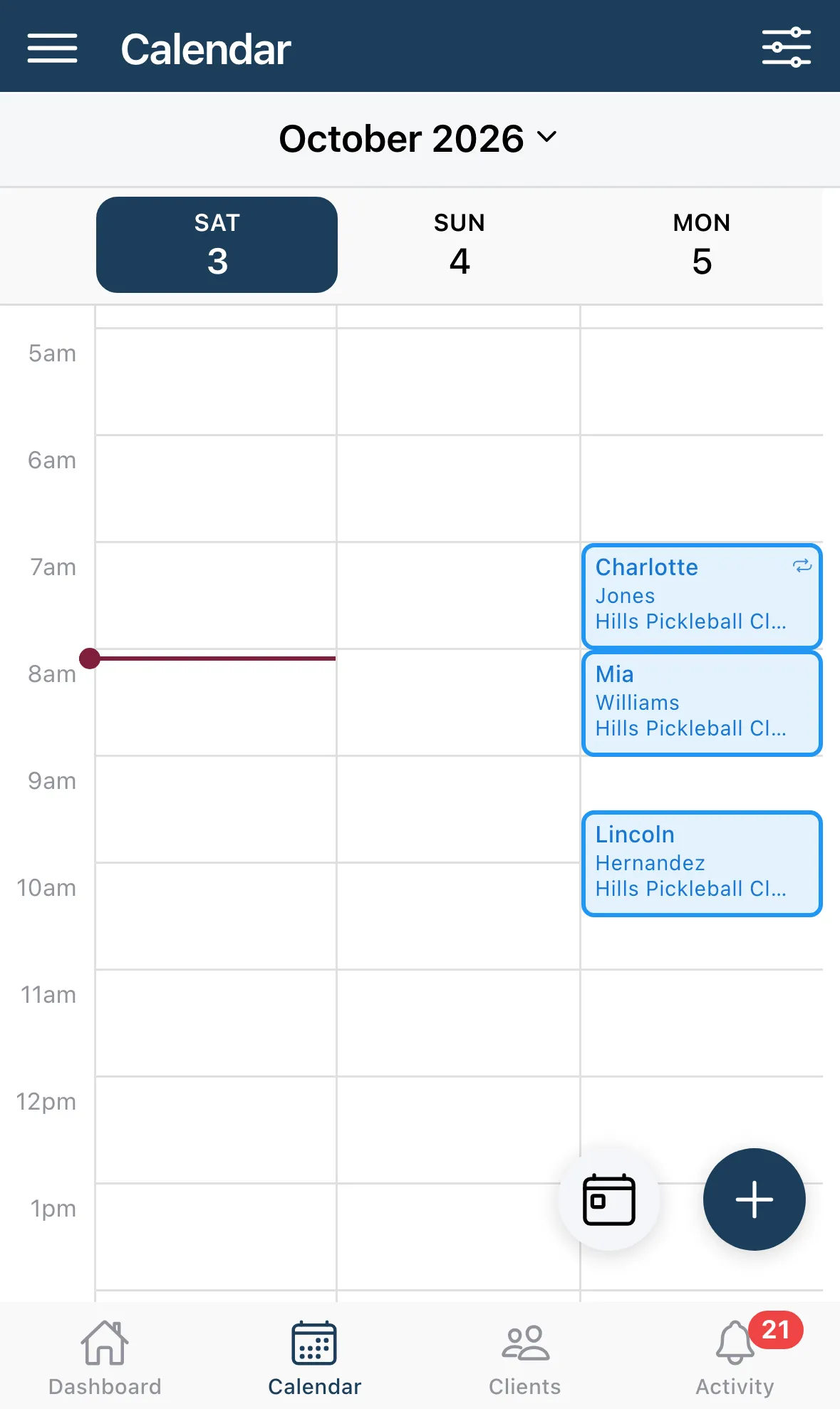
Open the Calendar tab and tap the + button. In the Add to Calendar list, tap New appointment. You can also tap the + on the Dashboard.
-
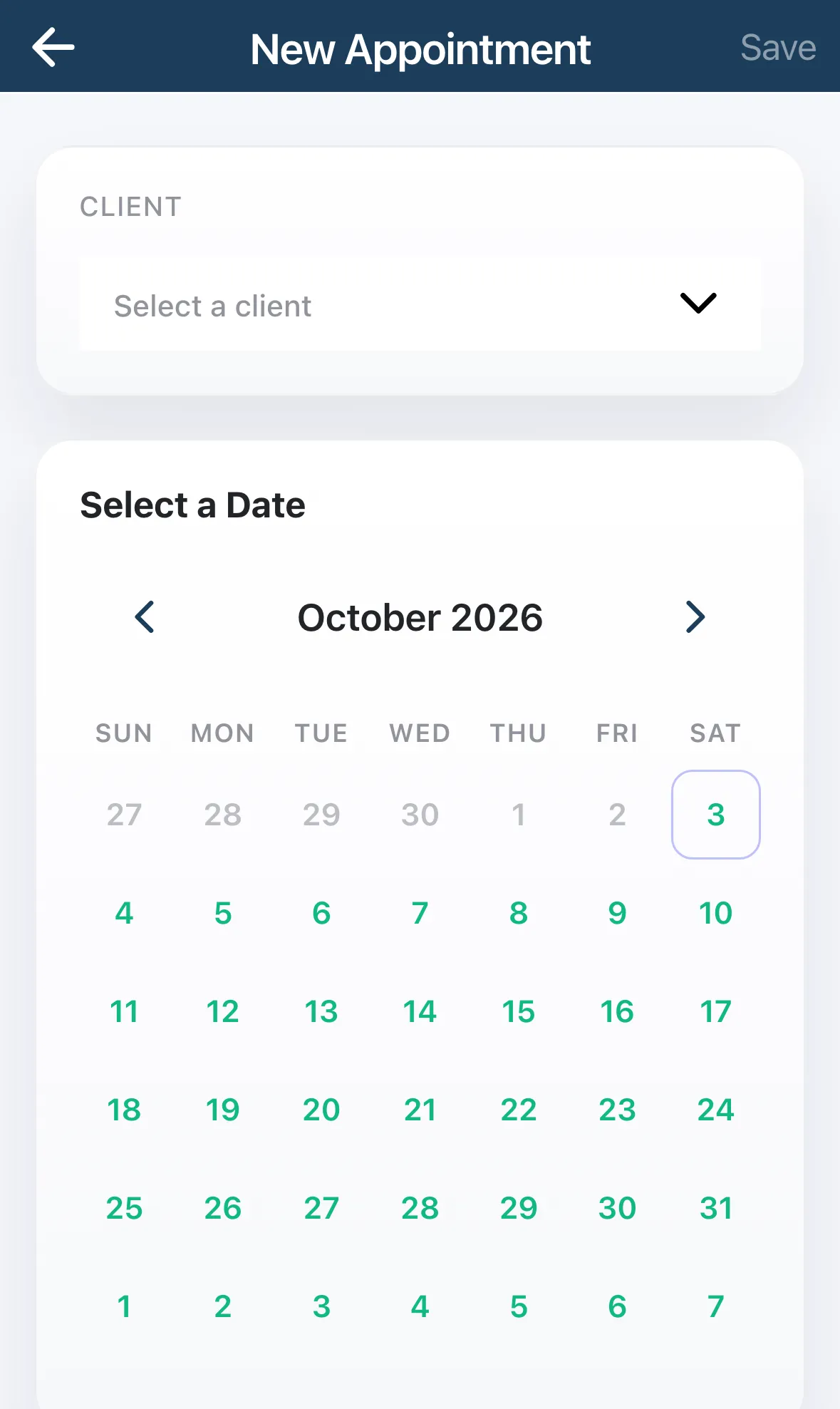
Under Client, tap Select a client and choose the client.
-
Under Select a Date, tap the day.
-
Under Select a Time, tap a time. Times that are already taken are greyed out.
-
Check Duration. It starts at your default length, which you can change in Calendar Preferences.
-
Optional: set Repeat, Session Type, Location, and add Notes (Optional).
-
Tap Save.
The appointment shows up on your calendar, and the client gets a text. Turn those texts off in Settings › Notifications with Notify clients when I book for them.
The fields
Section titled “The fields”| Field | What it does |
|---|---|
| Client | Who the appointment is for. Required. |
| Select a Date and Select a Time | When it happens. Required. The time list only shows openings from your availability. |
| Duration | How long it runs. |
| Repeat | Does not repeat by default. Choose Daily, Weekly, Every 2 weeks or Monthly, then set Repeat every and Ends: No end, On date or After occurrences. |
| Session Type | The kind of lesson. Its price shows under the picker. |
| Location | Where it takes place. |
| Notes (Optional) | Notes for yourself about this appointment. |
| Additional Clients | Appears when the lesson type allows more than one person. It counts how many of the spots you’ve filled. |
Good to know
Section titled “Good to know”- Booking in the past. When you pick a day that has already happened, the time list is replaced by Selected time and a Change time button. Past appointments skip availability checks.
- No openings. If a day has no open times, tap Pick custom time to choose one yourself.
- Already booked. If the client already has a lesson at that time, you see Possible duplicate. Tap Create anyway to book it, or Cancel to go back.
- Book the next one fast. Open any appointment and tap Book Next Session. The client, lesson type and location are already filled in.