
Client Outreach
Pick a group of clients, write one message and text each of them from your own phone.
Client Outreach helps you invite the right clients to something, such as a clinic or an open court. You choose who with filters, write the message once, and then send it to each person from your phone’s Messages app.
Open it from the menu: Business Tools › Client Outreach.
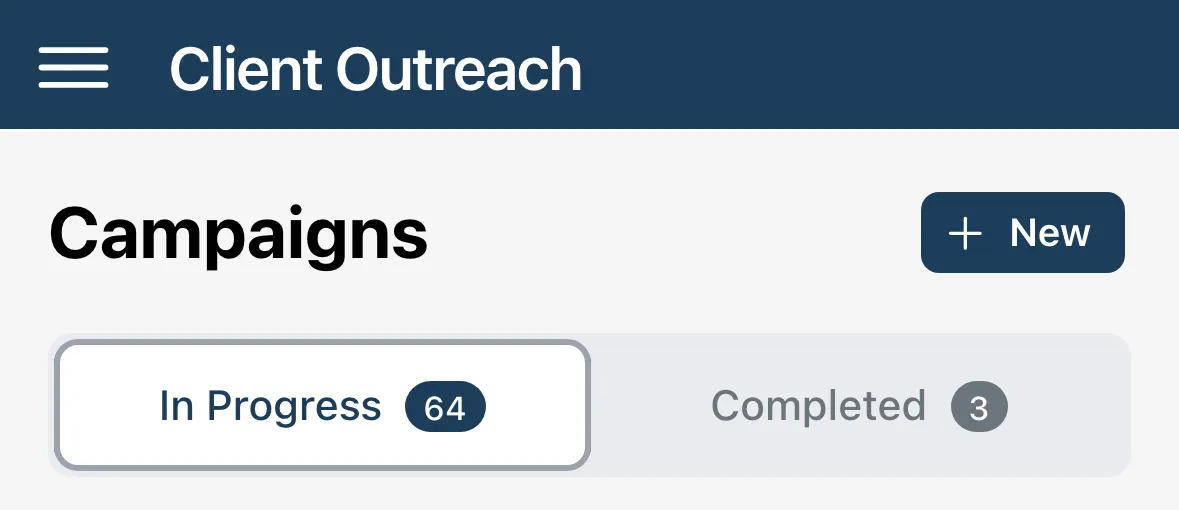
The page lists your Campaigns under In Progress and Completed, and your Templates below them.
Start a campaign
Section titled “Start a campaign”Tap New next to Campaigns. The wizard has a step for each filter. Each step shows how many clients match so far. Leave a filter alone to include everyone.
-
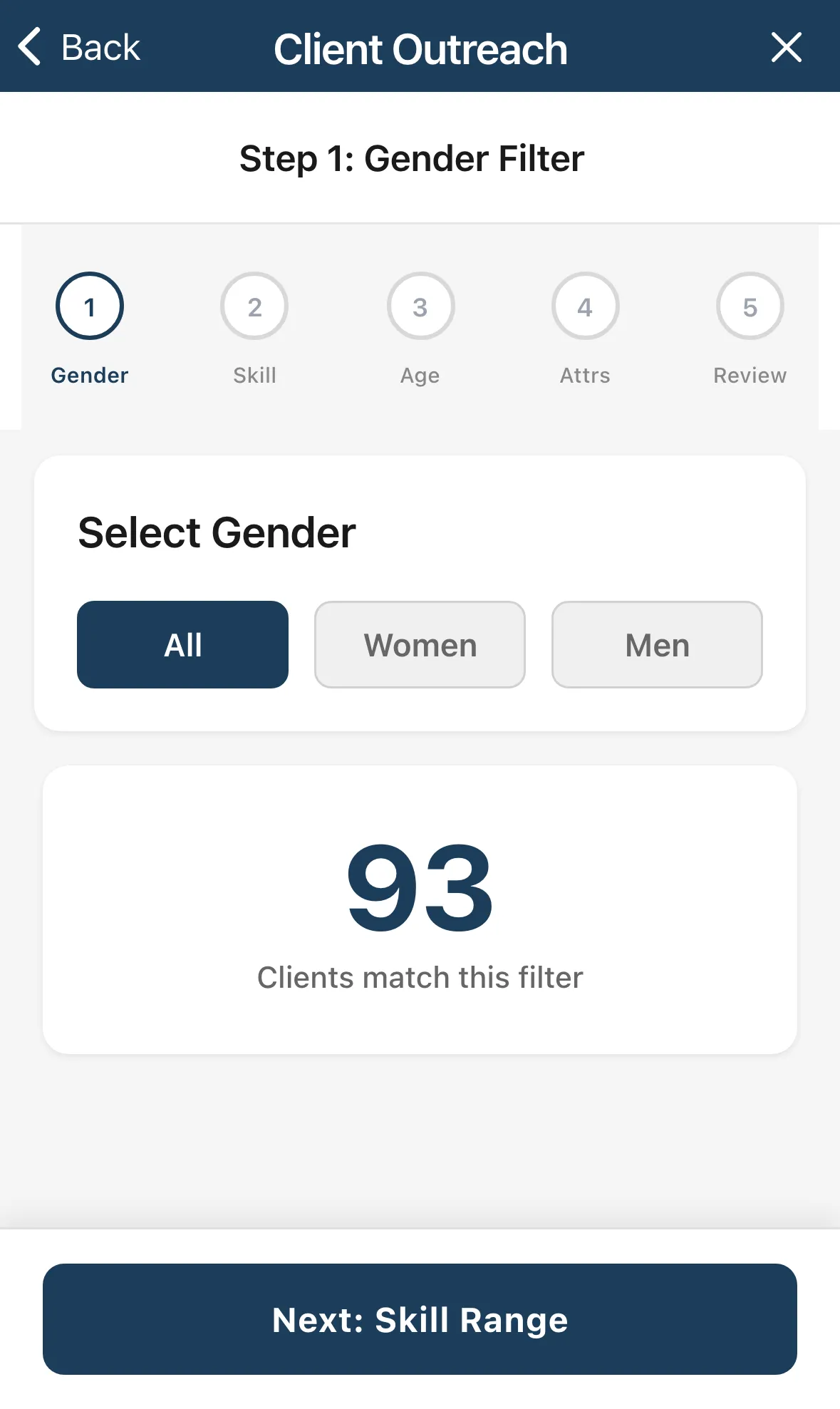
Step 1: Gender Filter. Choose All, Women or Men. Tap Next: Skill Range.
-
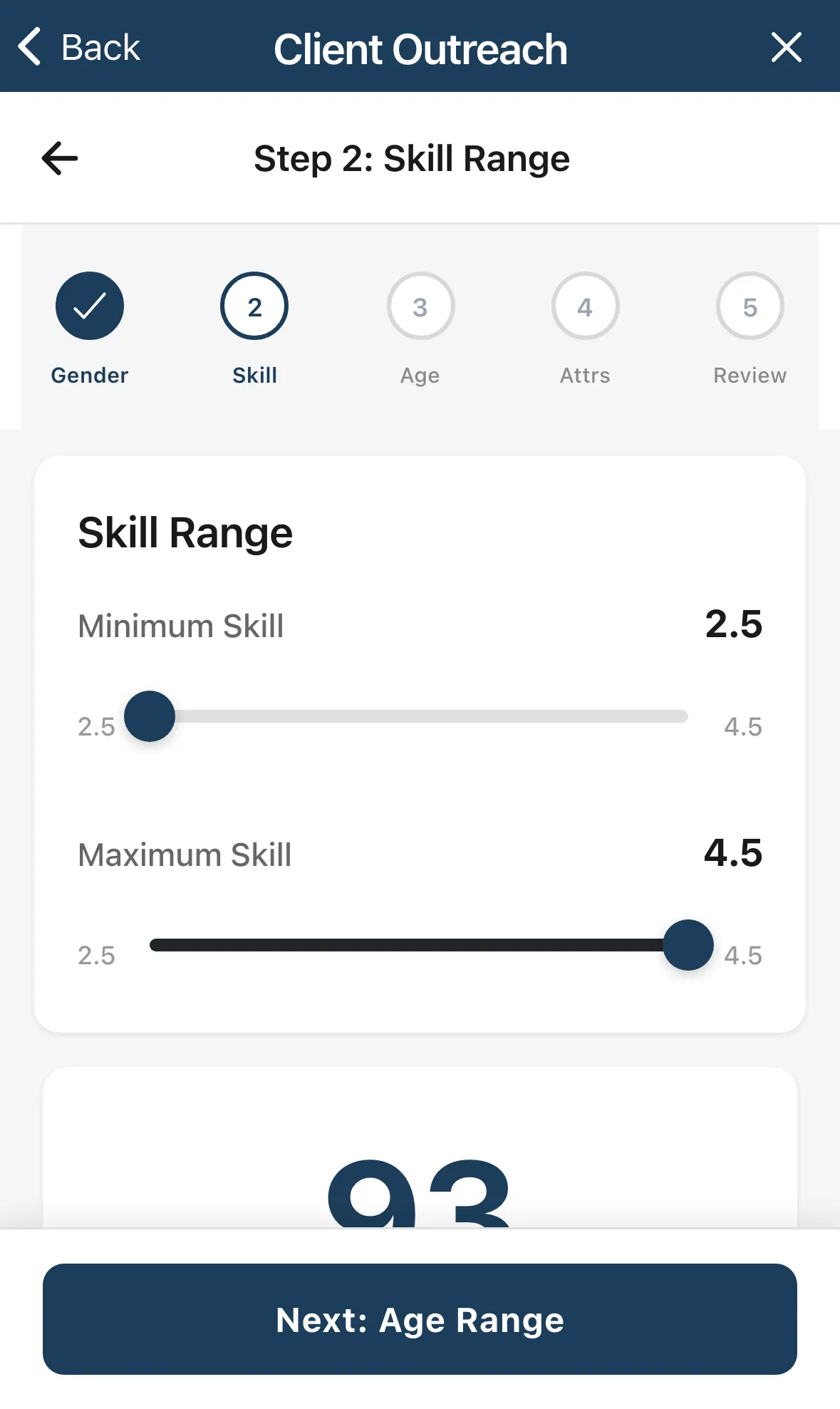
Step 2: Skill Range. Drag Minimum Skill and Maximum Skill. Tap Next: Age Range.
-
Step 3: Age Range. Drag Minimum Age and Maximum Age. Tap Next: Attributes.
-
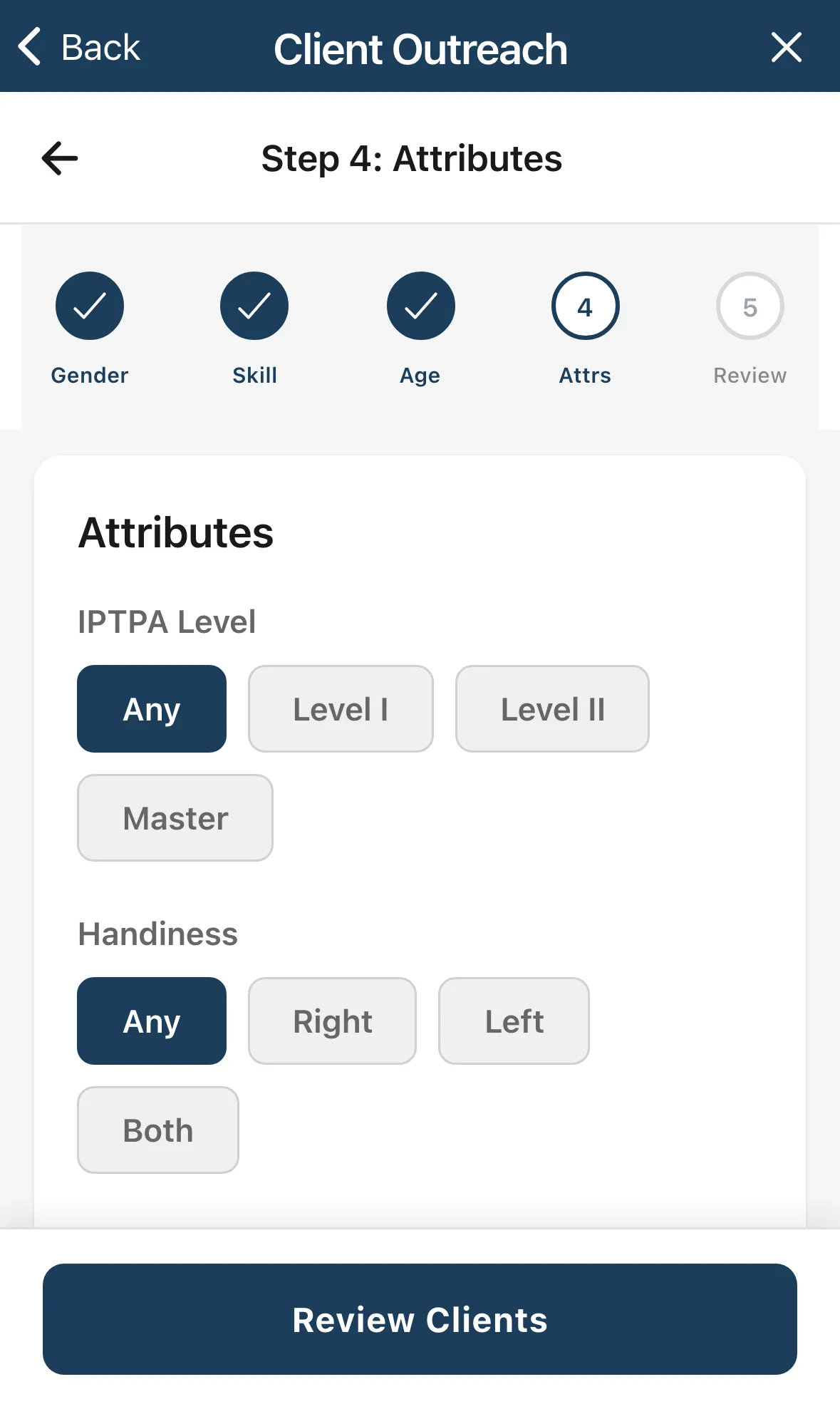
Step 4: Attributes. Narrow by your own Client Attributes, by Distance from a zip code, and by Activity: Last Lesson, Total Sessions and Active Status. Tap Review Clients.
-
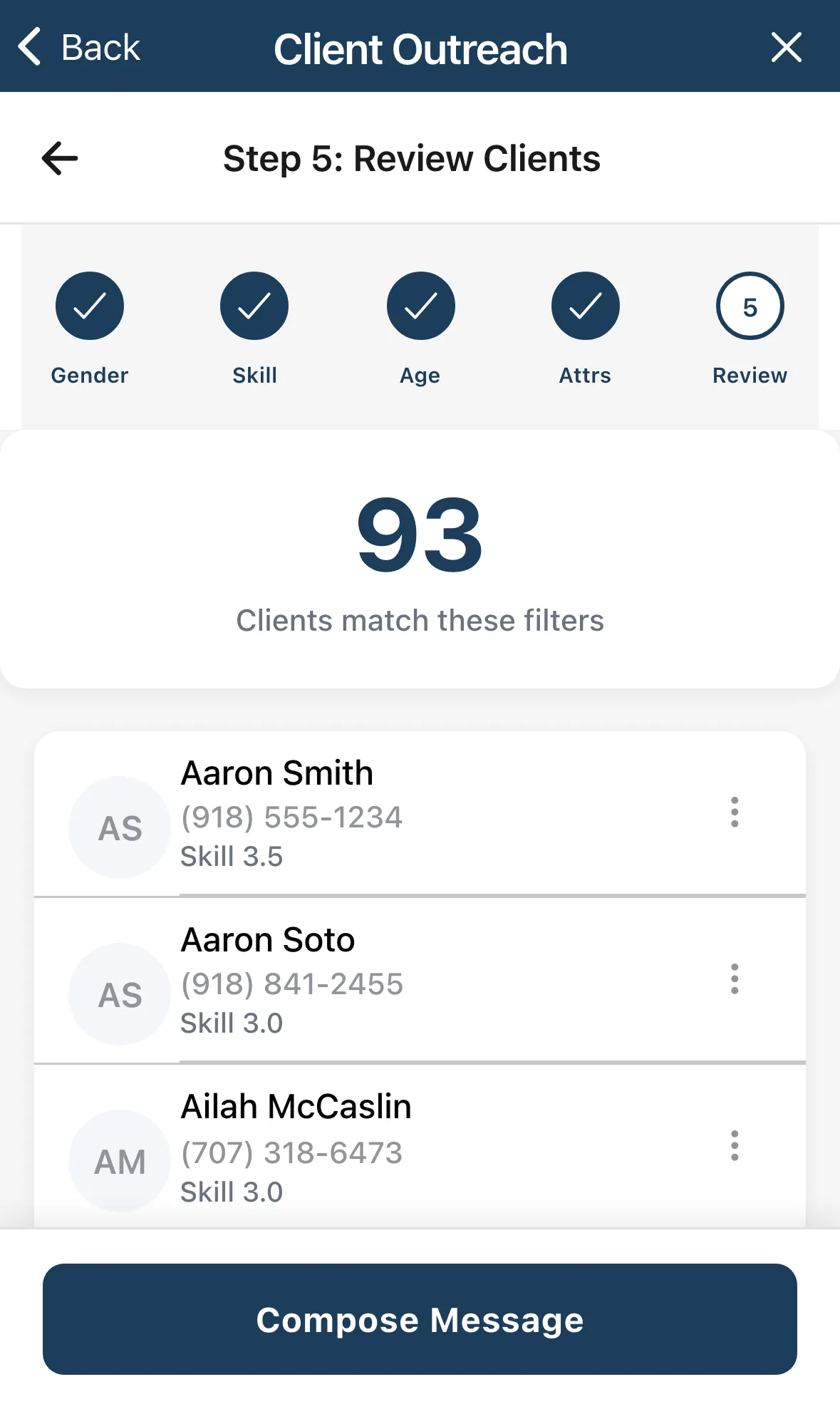
Step 5: Review Clients. Check the list. Use the three-dot button on a person to leave them out of this campaign. Tap Compose Message.
-
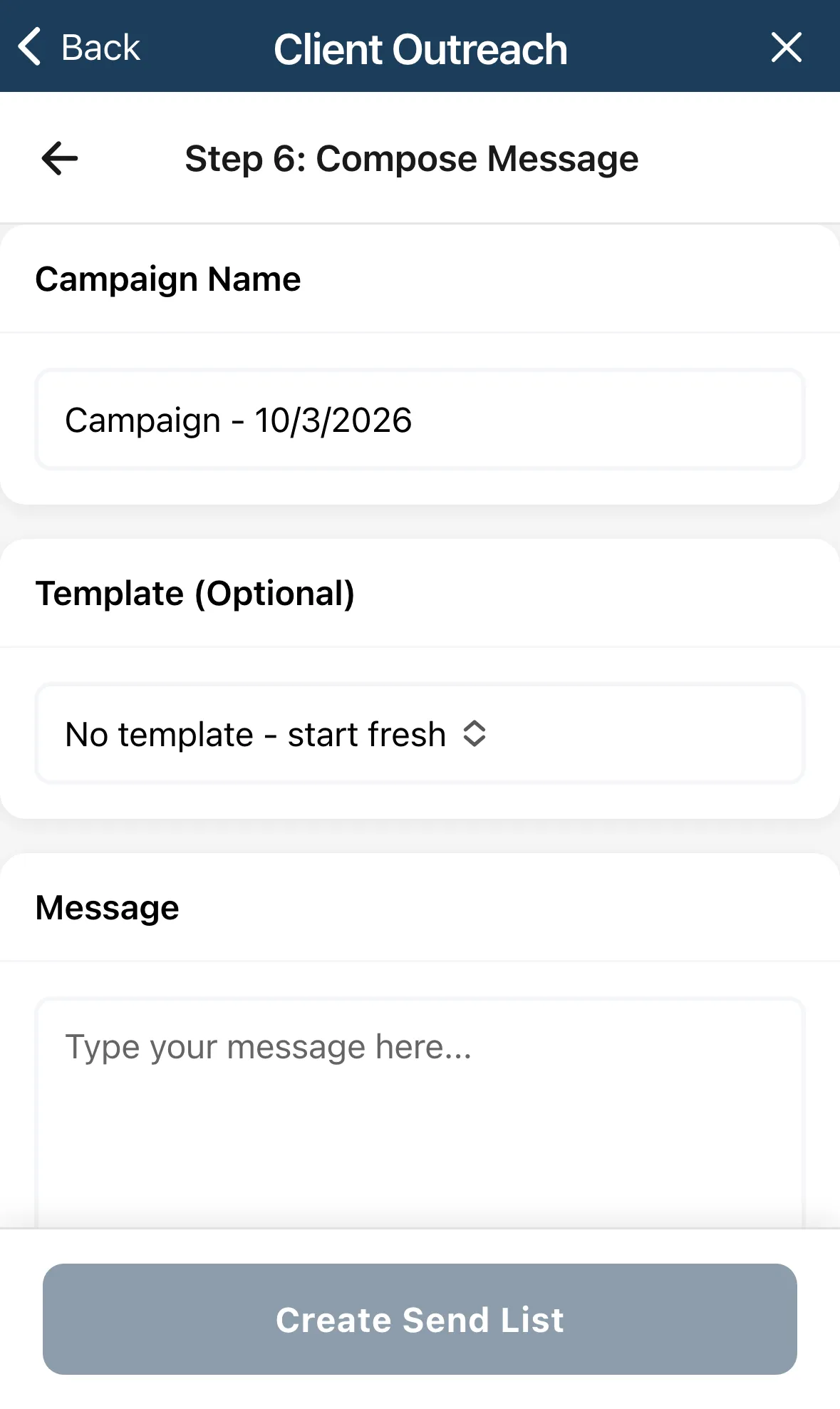
Step 6: Compose Message. Name the campaign under Campaign Name, optionally pick a Template (Optional), and write your Message. Tap Booking Link to add your booking page link, or Clinic Link to add a clinic’s. Tap Create Send List.
-
Send List. Tap a client to open your Messages app with the text already filled in, send it there, then come back. Mark each person Mark as Sent or Skip (press and hold a name for these options). Tap Complete Campaign when you’re done.
Tap x at the top right to leave the wizard. Your progress is lost unless you’ve already created the send list.
Templates
Section titled “Templates”Tap New next to Templates to save a message you reuse. Give it a Name and Message, and turn on Include booking link if you like. Load one in step 6 so you don’t retype it.
Good to know
Section titled “Good to know”- Texts come from your phone. Tennis Coach+ doesn’t send them for you, so they go out as normal messages from your number at your carrier’s rates.
- Opt-outs are respected. Clients you’ve set to Opted Out are counted, then skipped. You can change this on a client’s page.
- Length. The message counter shows how many texts a long message turns into. A single text is 160 characters.
- Missing phone. A client with no phone number shows Missing phone number in the review.