
Client Attributes
Add your own fields to track extra things about each client.
Client Attributes are custom fields. Use them for anything you want to know about a client that the standard form doesn’t ask, such as a membership type or which hand they play with.
Once you add one, it shows up when you add or edit a client, on their page, and as a filter in Client Outreach.
Add an attribute
Section titled “Add an attribute”-
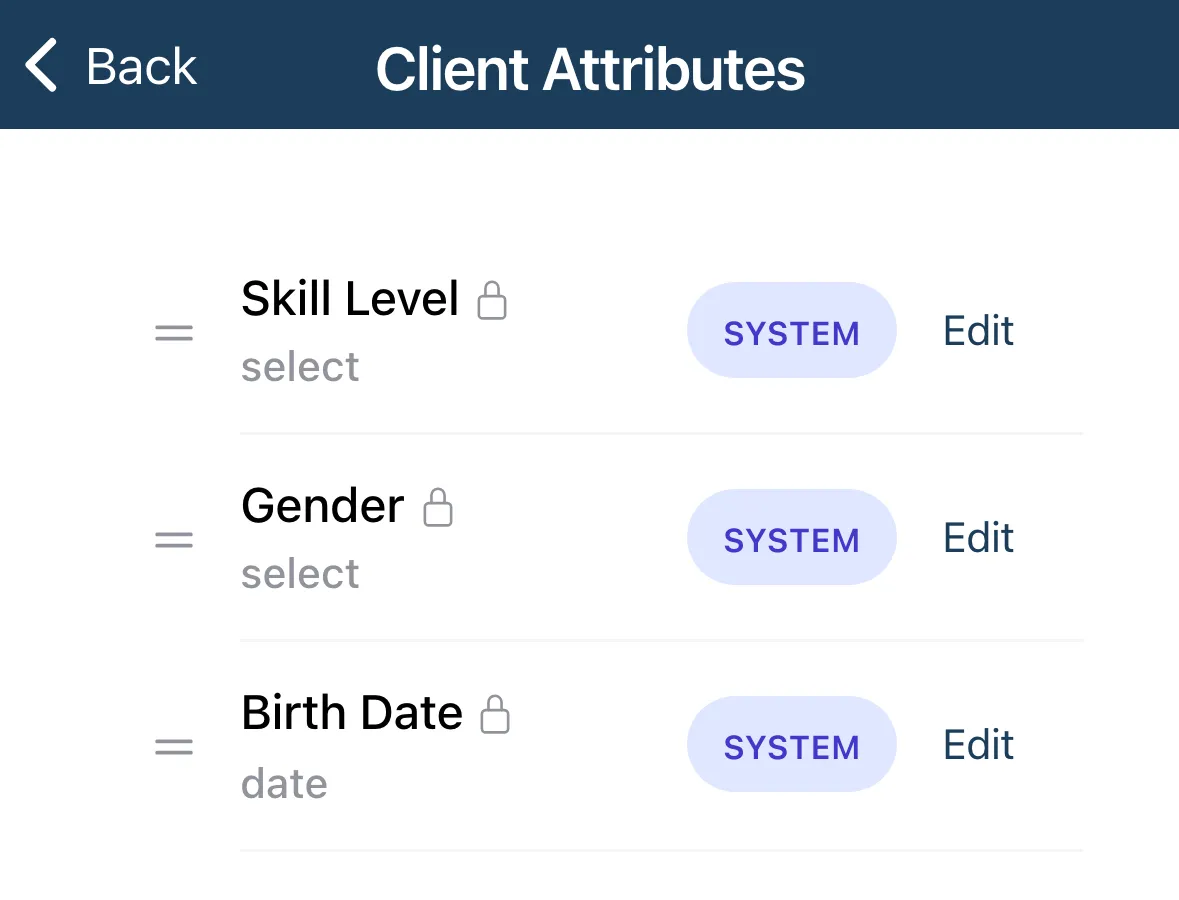
Tap the menu, then Settings, then Client Attributes.
-
Tap Add Custom Attribute.
-
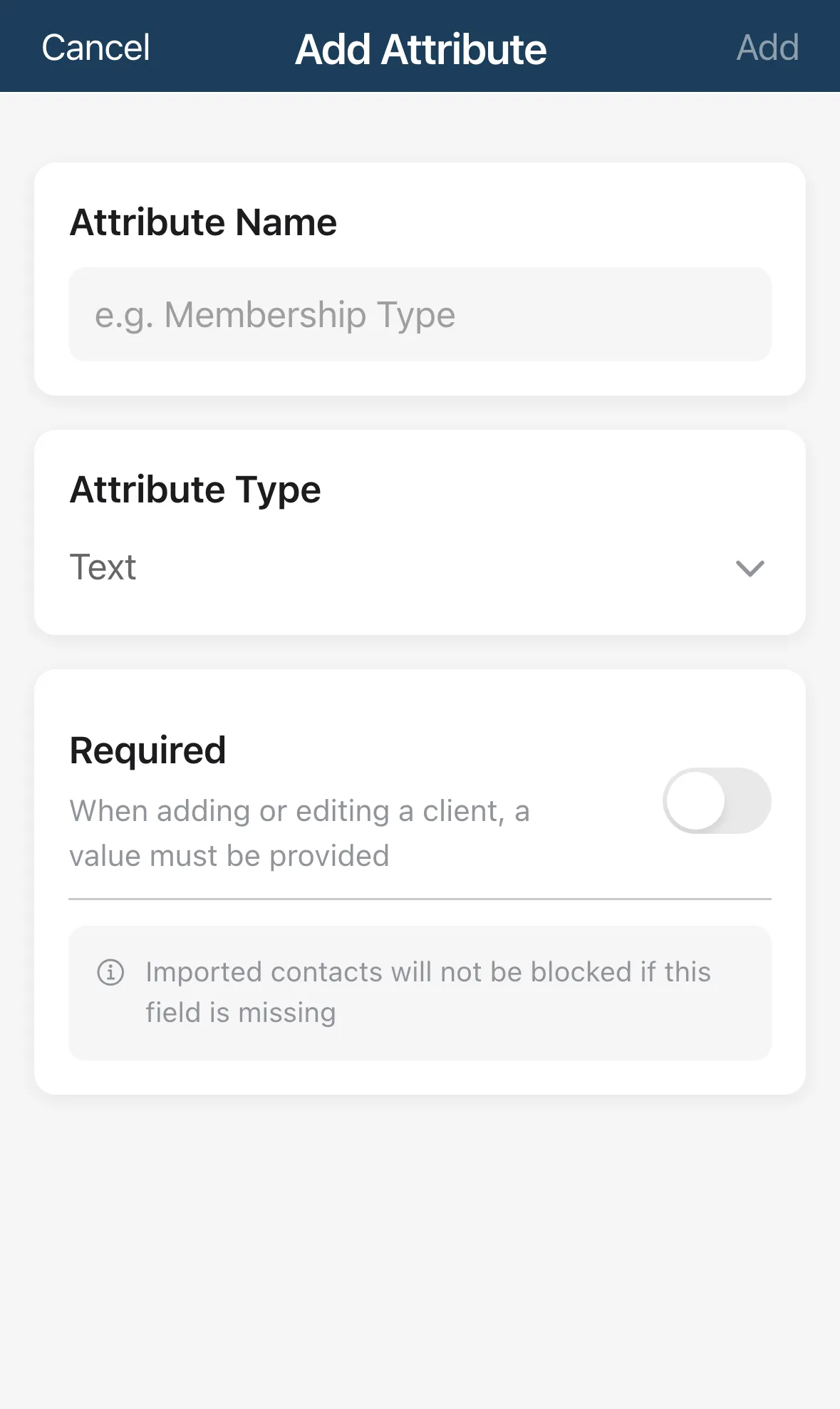
Enter an Attribute Name, for example Membership Type.
-
Choose an Attribute Type.
-
Optional: turn on Required so a value must be entered whenever you add or edit a client.
-
Tap Add.
| Type | Use it for |
|---|---|
| Text | Short text. |
| Dropdown | One choice from a list you write. |
| Multi-Select | Several choices from a list. |
| Number | A number. You can set a Minimum Value and Maximum Value. |
| Date | A date. |
| Yes/No | A switch. |
Dropdown and Multi-Select need at least 2 options. Drag to reorder them.
Manage your attributes
Section titled “Manage your attributes”- Edit an attribute to rename it or change Required. The type can’t be changed after you create it.
- Drag the handle to reorder the list.
- Tap the trash icon to delete a custom attribute.
- The rows marked SYSTEM (such as Skill Level, Gender, Birth Date and Age Range) are built in and can’t be deleted.
- You can have up to 20 custom attributes.