
Edit your profile
Change your name, photo, bio, booking link and the other details clients see on your booking page.
Your profile is what clients see when they open your booking page. Keep it current so clients know who they are booking with.
Edit your profile
Section titled “Edit your profile”-
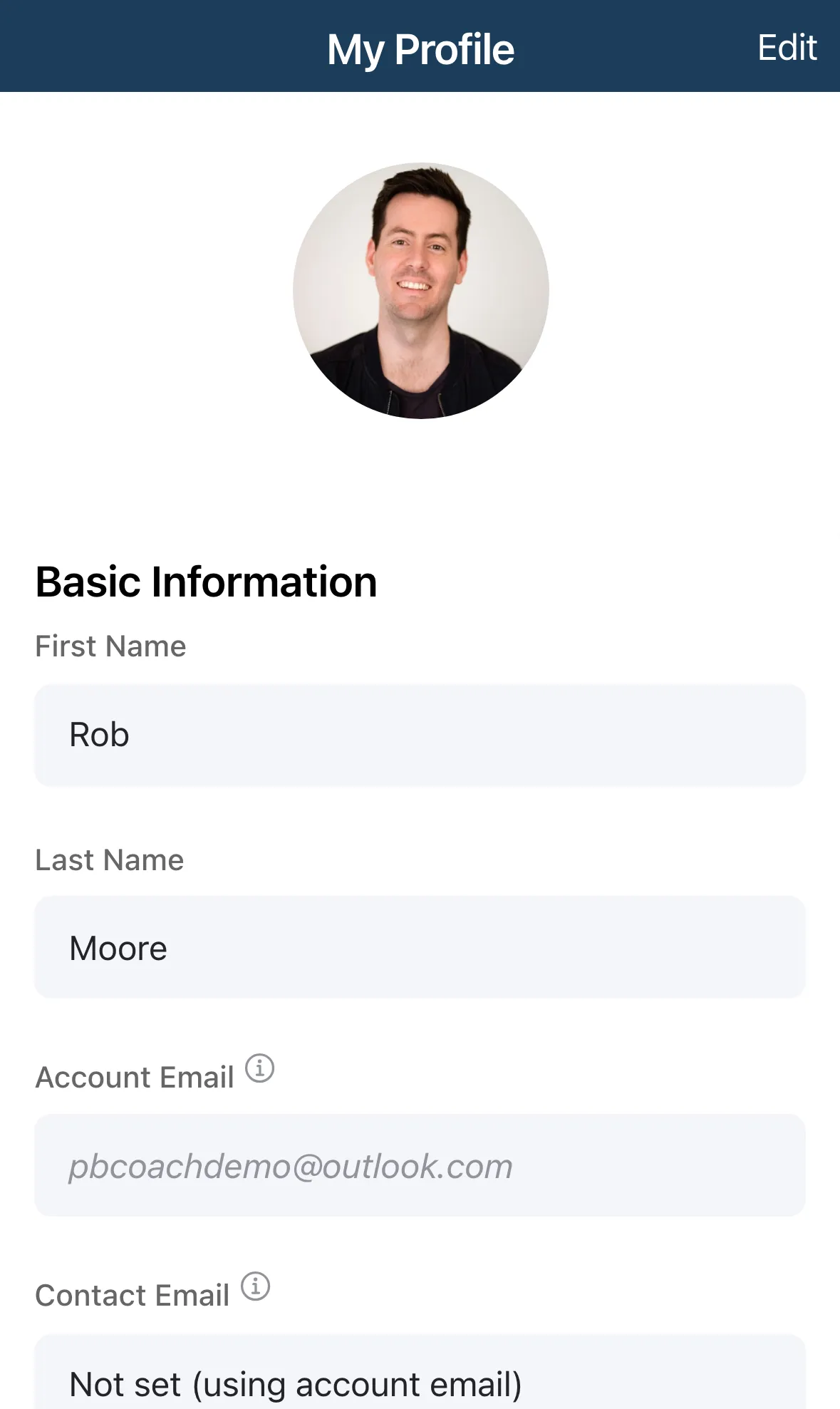
Tap the menu, then Settings, then My Profile.
-
Tap Edit at the top right. To go back without changing anything, tap Cancel.
-
Change what you need, then tap Save Changes at the bottom of the page.
Tap Change Photo while editing to pick a new picture. Photos must be smaller than 5MB.
Basic Information
Section titled “Basic Information”| Field | What it does |
|---|---|
| First Name, Last Name | Required. |
| Account Email | The email tied to your sign-in. You can’t change it here. |
| Contact Email | Optional. If set, clients see this email on your booking page instead of your account email. |
| Phone | Required. |
| Professional Title | Required. Shown under your name, for example “Certified tennis Instructor”. |
| Booking URL | The end of your booking link. Use 3 to 50 lowercase letters, numbers and hyphens. The app tells you if the name is already taken. |
Profile Details
Section titled “Profile Details”- Bio: tell clients about your experience and coaching style.
- Years of Experience: leave blank if it doesn’t apply.
- Certifications: up to 150 characters, for example PPR Certified, IPTPA Level 2.
- Timezone: your appointment times use this timezone.
- Accepting New Clients: turn it off to stop your booking page taking new bookings.
Social & Web Links
Section titled “Social & Web Links”Add your Facebook, Instagram, YouTube and Website addresses. They show as icons on your booking page. Each address must start with http:// or https://.