
Add a client
Add one client to your list with their name, phone number and details.
Everyone you coach lives on the Clients tab. Add a client here first, and you can then book them, text them and keep notes on them. Have a whole list to add? See Import contacts.
Add a client
Section titled “Add a client”-
Open the Clients tab and tap the + button at the top right.
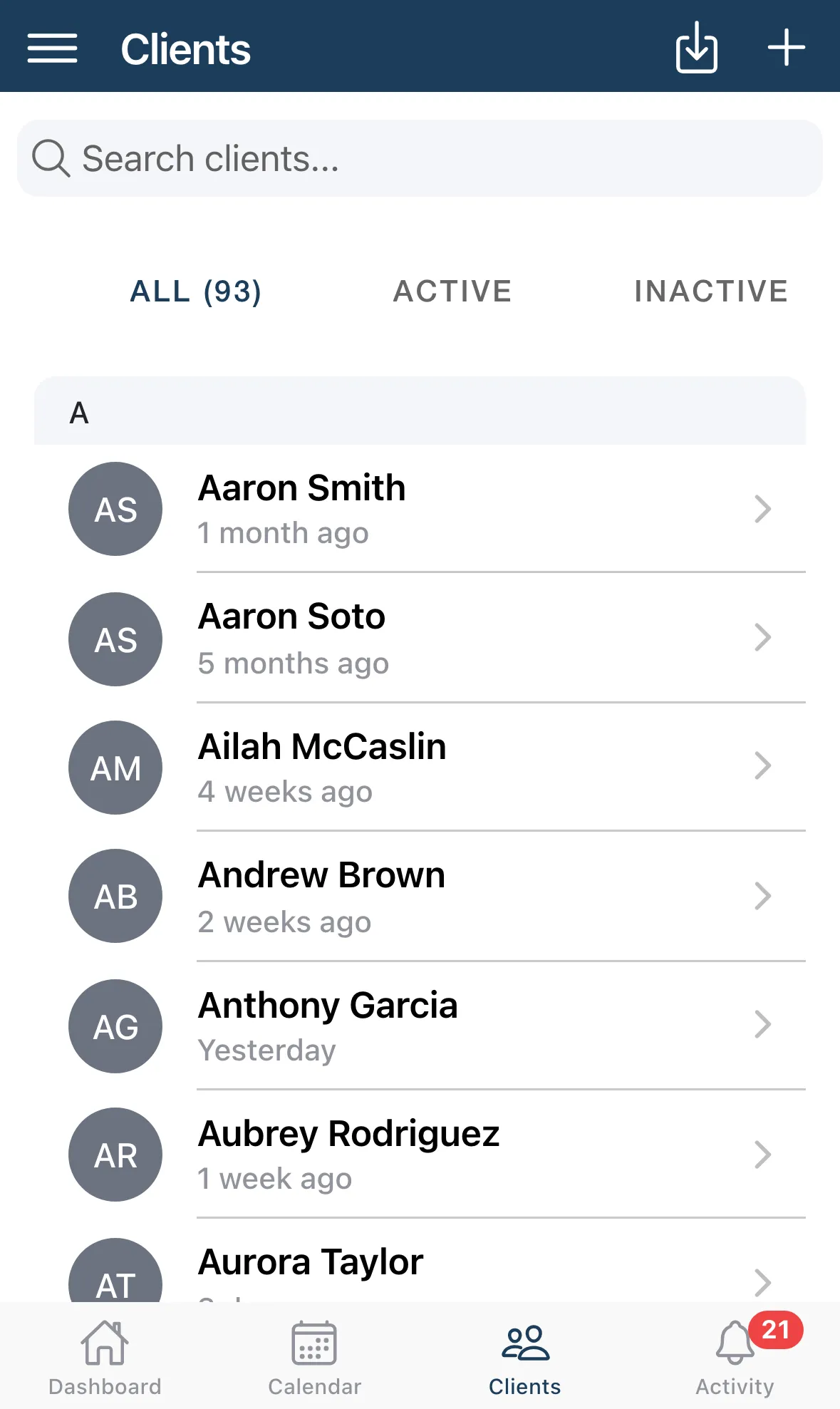
-
Enter the First Name and Phone. Both are required.
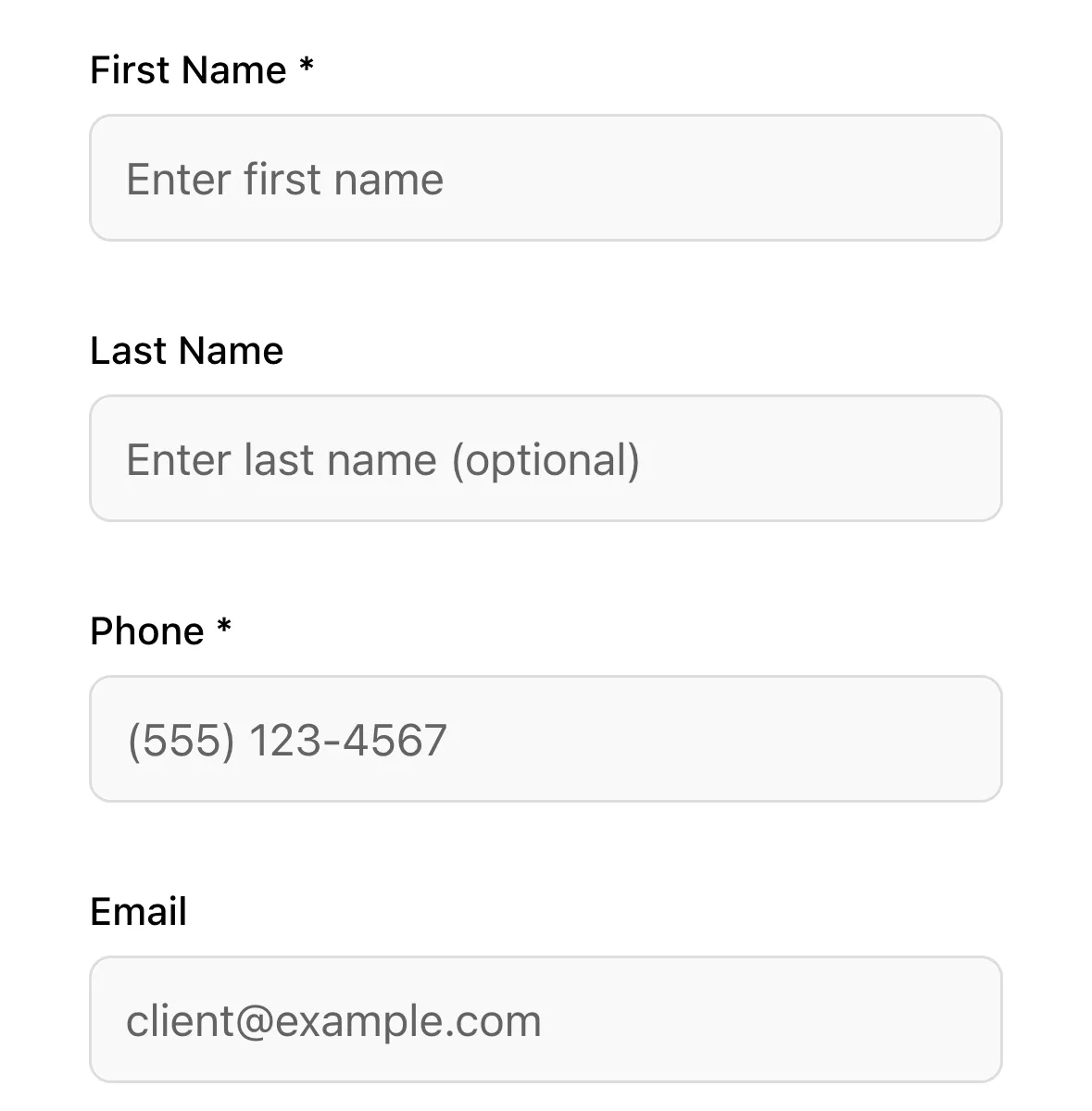
-
Optional: fill in Last Name, Email, the address, Skill Level, Birth Date (or Age Range if you don’t know it), Gender and Notes.
-
Fill in any custom fields you’ve added, such as the ones in Client Attributes. A field marked with * is required.
-
Tap the button at the bottom of the form to save.
The new client appears in the list, in alphabetical order.
Free plan limit
Section titled “Free plan limit”The free plan covers up to 5 clients. Tapping + past that limit shows Client Limit Reached, with Upgrade to Pro for unlimited clients. Pro is bought in the iOS or Android app, not on the web.
Good to know
Section titled “Good to know”- Phone numbers matter: they’re how Tennis Coach+ texts your client and recognizes them when they book from your page.
- Find someone fast with Search clients…, and use All, Active and Inactive to narrow the list. Active means a lesson in the last two weeks.