
How clients book
What your clients see and do when they book you from your booking page.
Your clients book from your public booking page. They don’t need to install anything first, and they don’t need to set up a password.
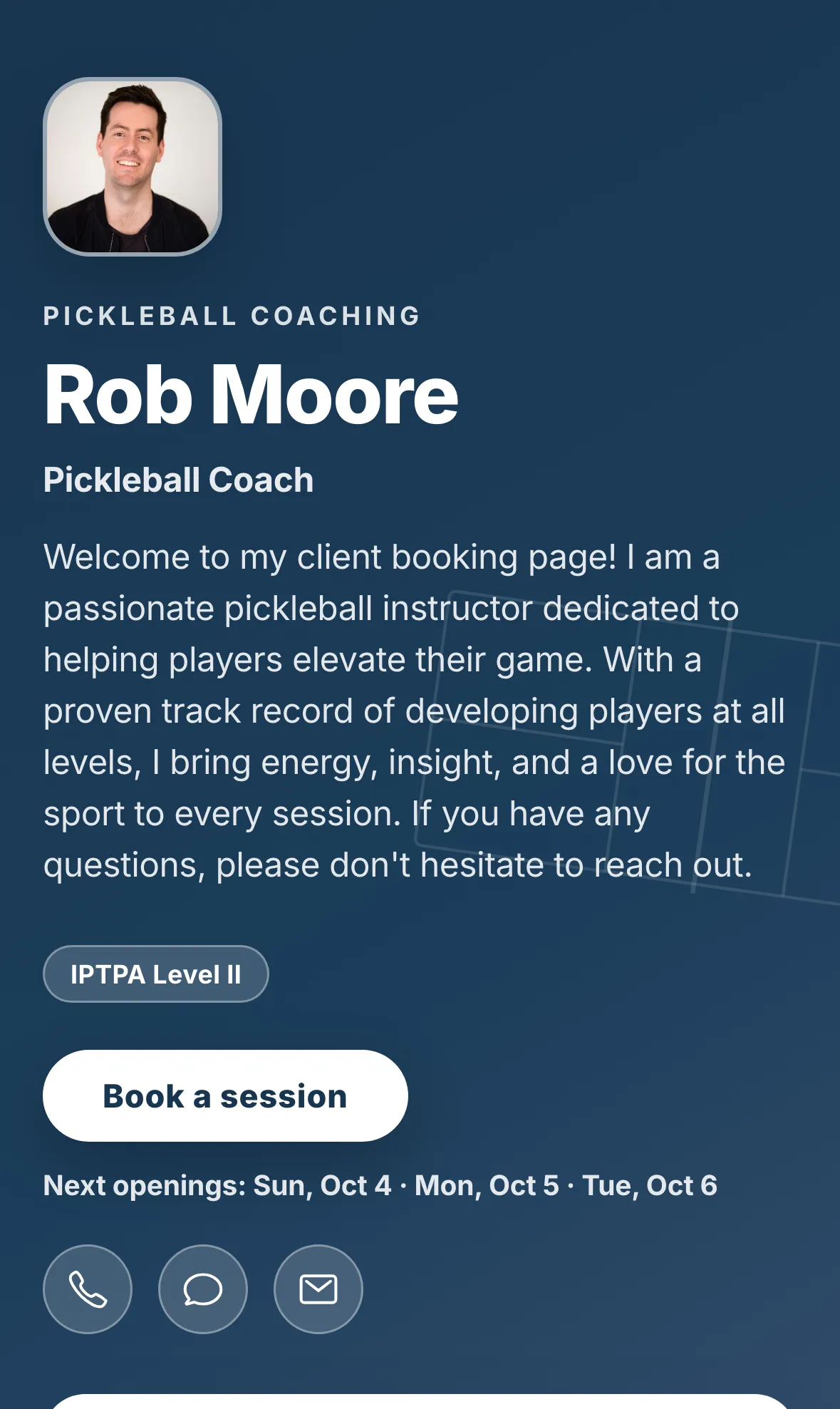
What clients do
Section titled “What clients do”- They open your link. The page shows your photo, bio, lesson types with prices, and your next openings.
- They pick a lesson type. The page has a Book a session button, and each lesson type has its own Book button.
- They confirm it’s them. The simplest way is Continue with text message: the client enters their name and phone number, and we text a 6-digit code. They type the code in. The page also offers Continue with Apple, Continue with Google and Continue with email.
- They choose a date and time. They only see times you’ve made available in your availability.
- They review and confirm. The review screen shows the type, date, time, duration and location. Clients can add a note for you, and a partner’s name if the lesson is for more than one person. They tap Confirm booking.
Clients get a confirmation text. See How clients reschedule or cancel.
What you see
Section titled “What you see”The booking lands on your Calendar and in Activity, and you get a notification. If you turned on approval for new bookings, it waits as Awaiting confirmation until you approve or decline it. The client sees the same status.
If a booking needs extra details from the client, such as the custom questions you set up for your clients, they’re asked for them before the review screen.
Good to know
Section titled “Good to know”- A client can only choose times you’ve made available. To open more times, change your hours in Settings.