
Import contacts
Add many clients at once from your phone's contacts, or by pasting a list.
If you already have a book of clients, import them instead of typing each one in. On your phone you pick from your contacts. On the web you paste a list.
- Open the Clients tab and tap the download icon at the top right, next to +.
- In Import Contacts, find people with Search contacts or tap Select All.
- Tap the contacts you want. Anyone already on your list is marked Already a client.
- Tap Import and the number you chose, for example Import (3).
If asked, allow Tennis Coach+ to read your contacts. On an empty list you can also tap Import from Contacts.
-
Open the Clients tab and tap the download icon at the top right. On an empty list, tap Paste a List.
-
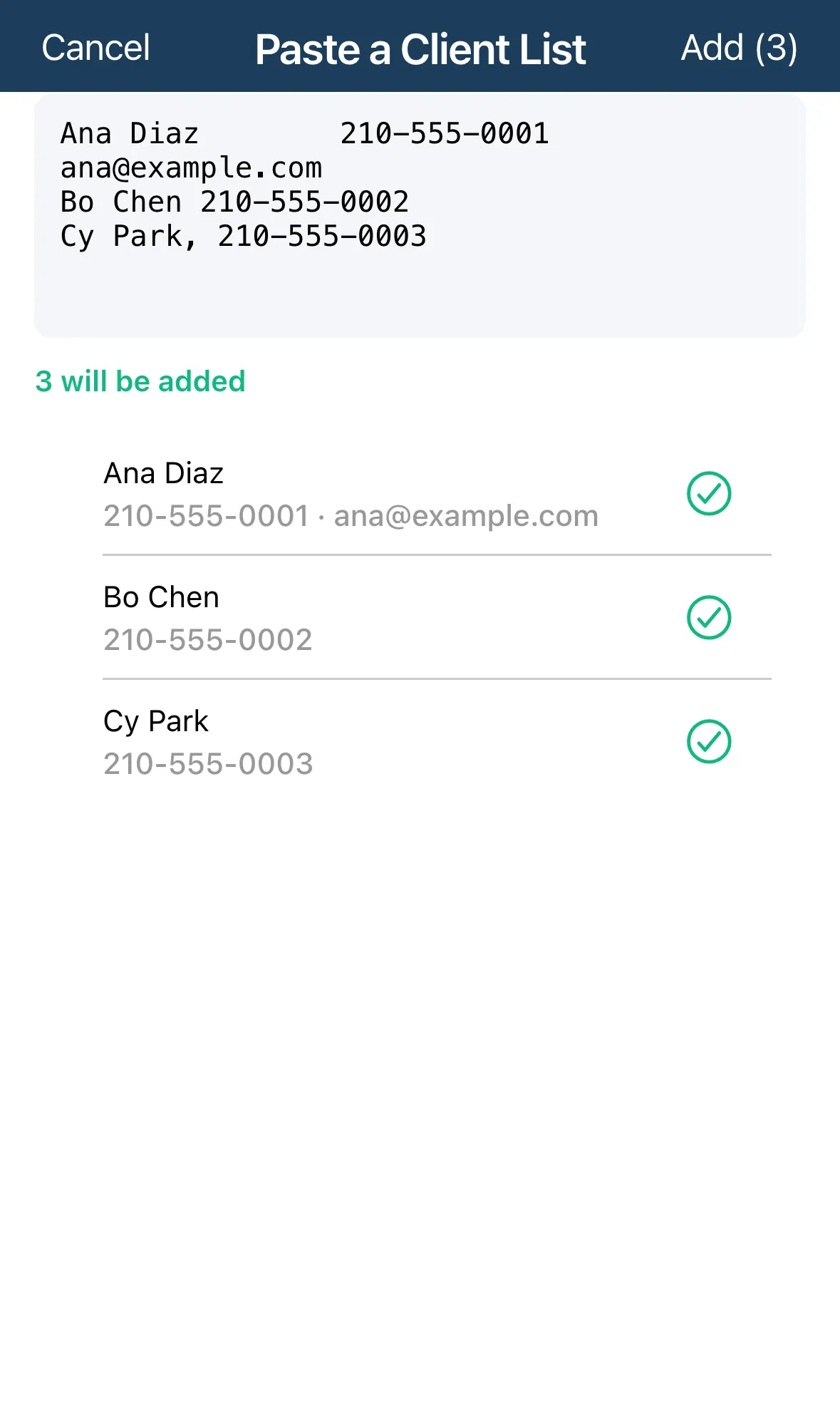
In Paste a Client List, paste one client per line as name, phone, email. The email is optional.
-
Check the preview under the box. will be added rows are good. Rows marked need attention say why, for example Needs a name or Needs a phone number.
-
Tap Add and the number of rows, for example Add (3).
You can copy the name, phone and email columns straight from Excel, Google Sheets or Numbers. A first row of headings such as Name, Phone is skipped.
Good to know
Section titled “Good to know”- Duplicates. Someone whose phone or email is already on your list shows as already clients and isn’t added again.
- Free plan limit. The free plan covers up to 5 clients. Anything beyond that is marked Over your 5-client plan: remove lines or upgrade to Pro to add them.
- Imported people don’t need your custom required fields. Fill those in later from each client’s page.