
Share your booking page
Find your booking link, copy it, and send it to clients so they can book you.
Every coach has a public booking page. Clients open it, pick a lesson and a time, and book. Nothing to install and no account needed.
Your link looks like this:
tnch.app/booking/your-name
The last part comes from your profile. You choose it in the Setup Wizard and can change it in Settings.
Copy your link
Section titled “Copy your link”-
Tap the menu icon (three lines), choose Settings, then Setup Wizard. Open Add & Text Your Clients. See Run the Setup Wizard.
-
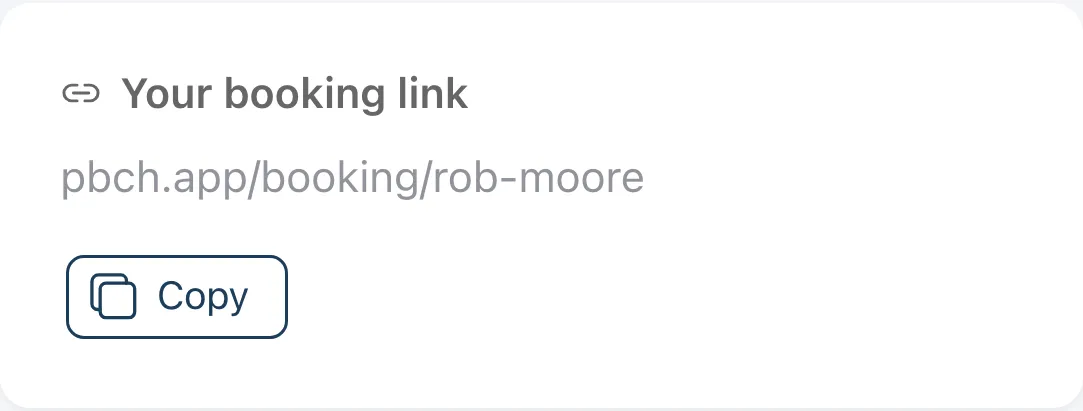
Find Your booking link.
-
Tap Copy. On a phone you can also tap Share.
-
Paste it into a text, an email, your social profiles or your website.
Share a QR code
Section titled “Share a QR code”On the Dashboard, tap the QR code icon at the top right. My Booking QR Code opens, with these buttons:
- Save Image saves the code so you can print it or put it on a flyer.
- Share sends the code or link through your phone.
- Open shows your booking page, the way clients see it.
- The copy button next to the link copies it.
Text it to clients you already coach
Section titled “Text it to clients you already coach”In Add & Text Your Clients, add a client and tap their Text button. The message goes from your own phone, so clients see your number.