
Run the Setup Wizard
Set up your profile, location, hours, prices and first clients so people can book you.
The Setup Wizard gets you from a new account to a booking page that’s ready for clients. It has five steps, and you can leave and come back at any time. Your progress is kept.
Before you start
Section titled “Before you start”- Sign in to Tennis Coach+. See Sign in.
- Have your phone number, the place you teach and your usual prices to hand.
Start the wizard
Section titled “Start the wizard”The first time you sign in, the Welcome screen offers two choices: Set Up Your Coaching Profile and Browse the Dashboard. Pick the first one.
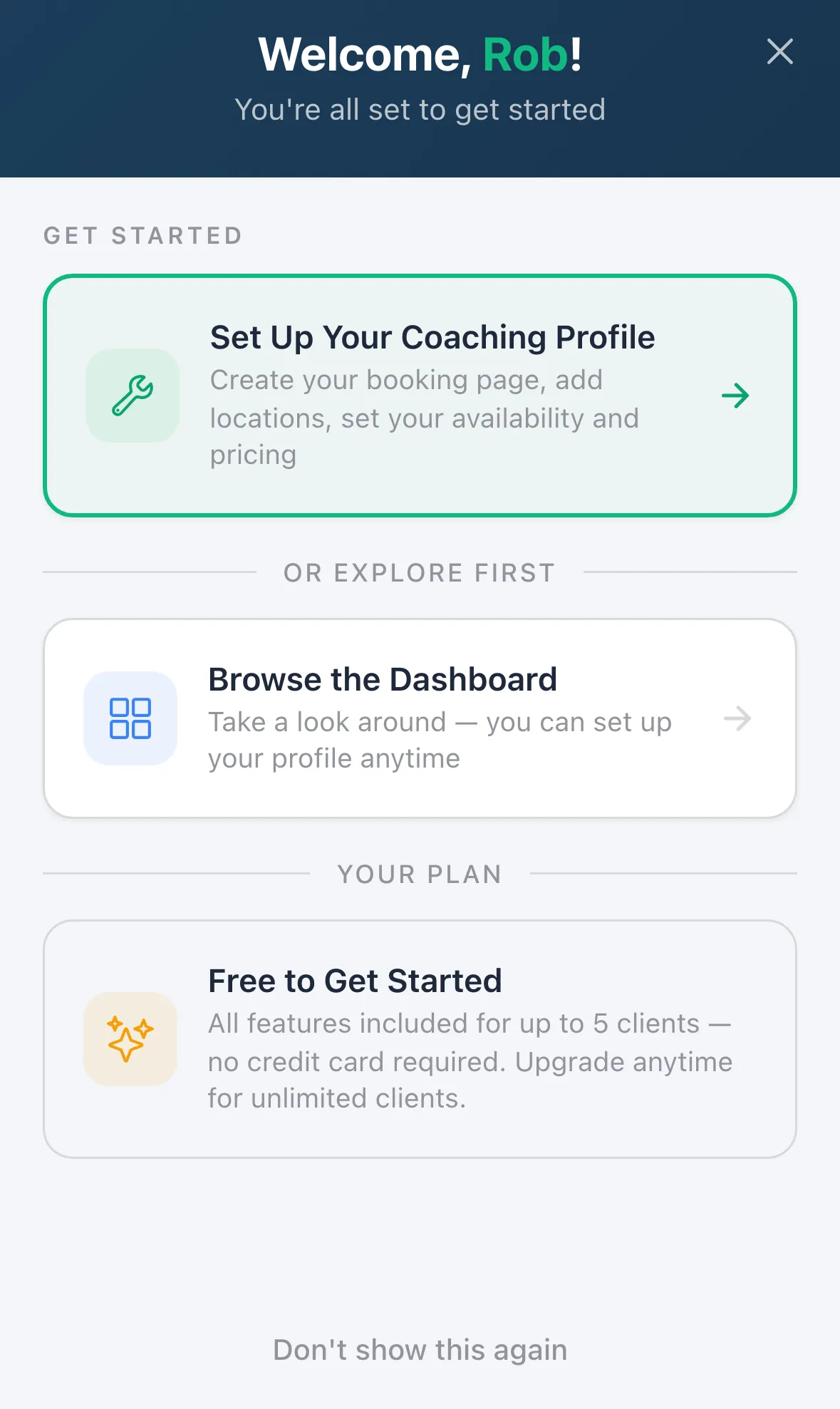
Skipped it? Choose Browse the Dashboard. You can return any time from the menu: Settings, then Setup Wizard. Tap Don’t show this again to stop the welcome screen from appearing.
The wizard opens on a list of five steps with a progress bar (for example 4 of 5 complete). Steps unlock in order. Add & Text Your Clients unlocks once the first four are done.
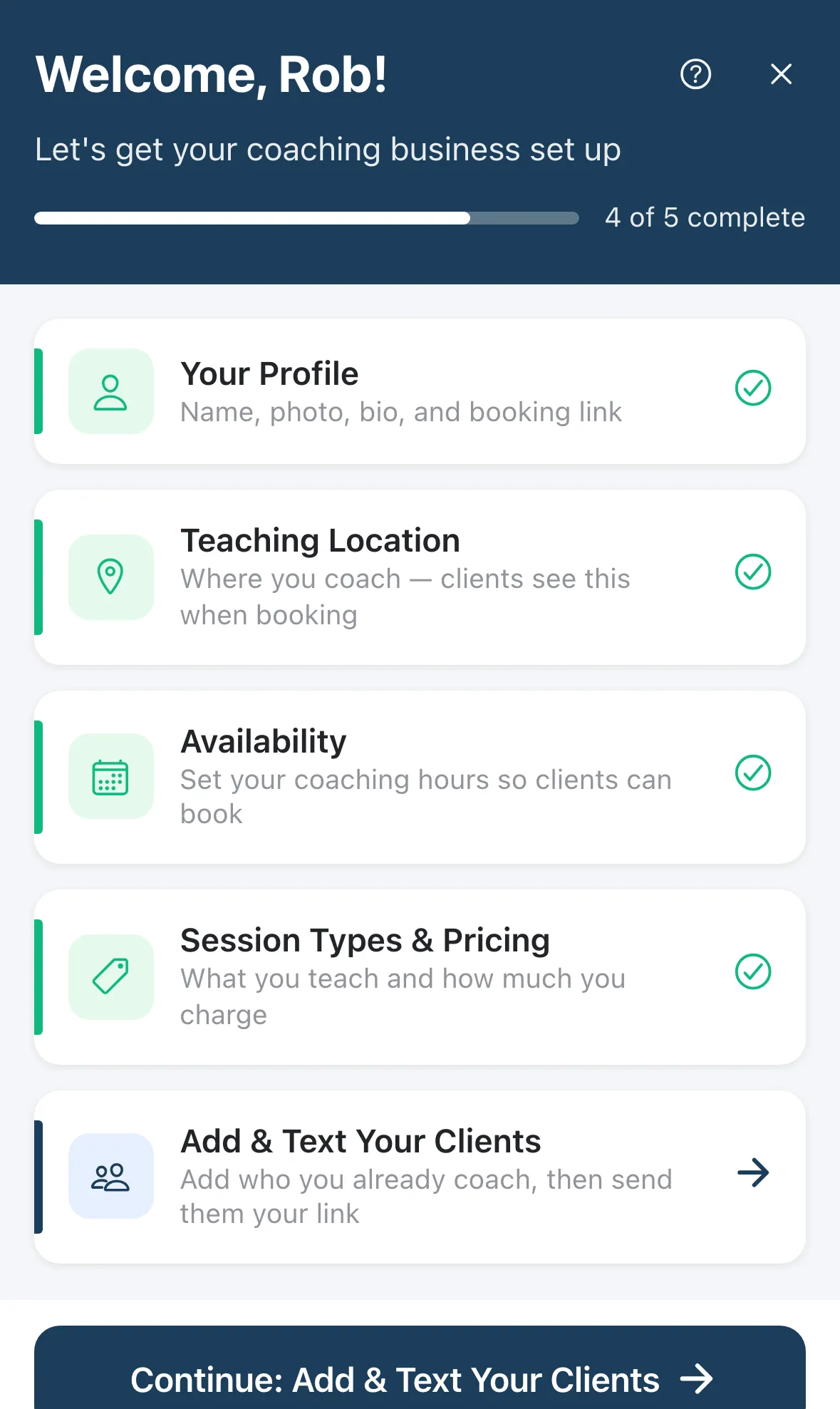
The five steps
Section titled “The five steps”- Your Profile. Add your photo (optional), then your name, Professional Title, Phone Number, Country and Timezone. Your booking link is created for you automatically. You can customize it later in Settings.
- Teaching Location. Tap Add Location and enter where you coach. Clients see it when they book. You can add more than one.
- Availability. Tap Add Availability and set the days and hours you coach. Clients can only book inside these hours, so add at least one block.
- Session Types & Pricing. Create at least one lesson type, for example Individual Session. Set the name, length and price. Clients pick from these when they book.
- Add & Text Your Clients. Add the people you already coach, then send each of them your booking link from your own phone. See Share your booking page.
Tap Done — Back to Setup at the bottom of each step to return to the list. When all five are complete, tap Finish Setup.
Change anything later
Section titled “Change anything later”Everything the wizard asks for also lives in Settings. You can edit your profile, locations, hours and lesson types at any time.