
Manage your account
See the details of your account, including when you joined and how many clients and bookings you have.
The Account screen is a summary of your Tennis Coach+ account. It’s also where you go to delete your account.
Open your account
Section titled “Open your account”Tap the menu, then Settings, then Account.
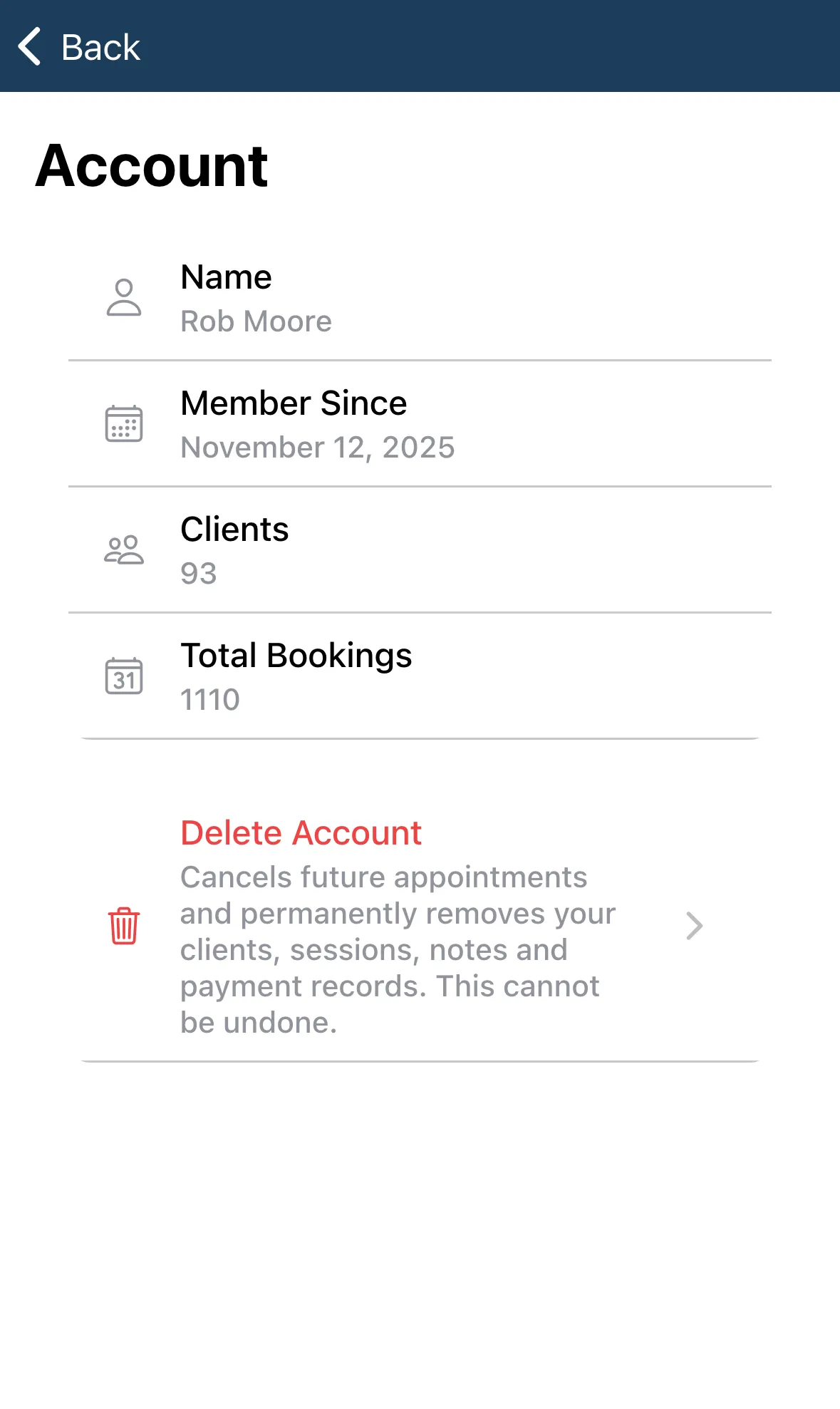
The screen shows:
| Item | What it shows |
|---|---|
| Name | The name on your account. |
| The email on your account, or None on file. | |
| Member Since | The date you joined. |
| Clients | How many clients you have. |
| Total Bookings | How many bookings you’ve had. |
You can’t edit anything here. To change your name or contact details, use My Profile. To check your plan, see Subscription.
If the details don’t load, tap Try Again.
Delete your account
Section titled “Delete your account”Delete Account is at the bottom. It describes what happens: it cancels future appointments and permanently removes your clients, sessions, notes and payment records. Tap it to open the delete screen. Nothing is deleted until you confirm there.
Read Delete your account first.